
Settings & Channel Configuration
Configure your business profile, review network MDR fees and minimum order limits, select accepted customer payment tokens, and manage API credentials.
Settings in the Hashpay Merchant App are organized into two primary sections: Merchant Setting (/setting/merchant-setting) for business data, credentials, and fee structures, and Payment Methods (/setting/payment-method) for customer checkout token customization.
Merchant Setting: General business profile
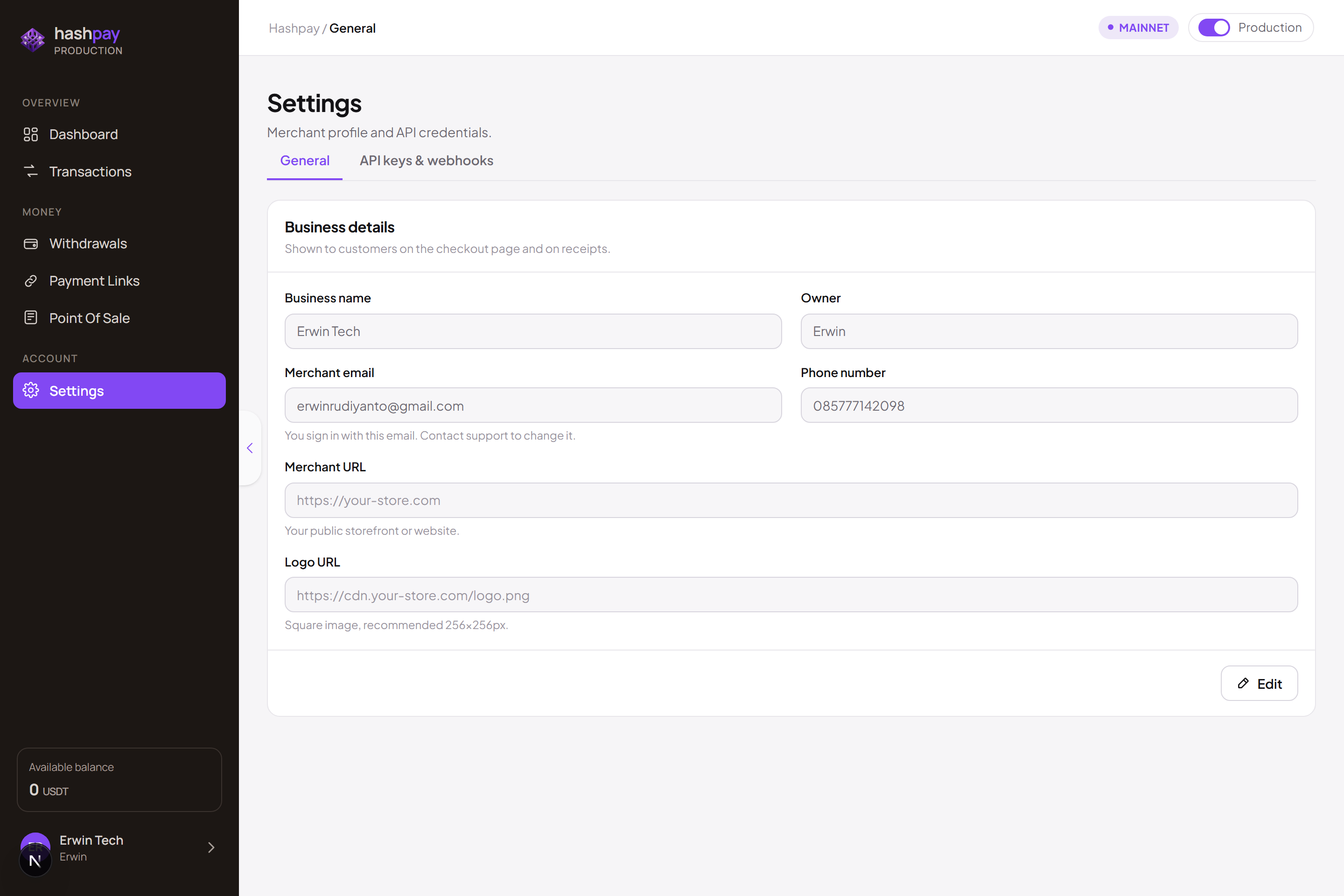
Located under /setting/merchant-setting in the General tab, your store profile defines your commercial branding and customer contact points across all touchpoints:
- Merchant & Brand Name — The commercial business brand displayed on customer checkout screens, WhatsApp invoice headers, and printed POS cashier receipts.
- Business Category — Classification of your trade (F&B, Retail, Fashion, Electronics, Digital Services, Hospitality, etc.) used for compliance reporting.
- Official Contacts — Registered business email and WhatsApp customer service number for settlement notifications and support escalation.
- Physical Address — Registered business headquarters or main physical branch outlet address.
Profile updates automatically sync across all active POS terminals and live payment links in real time. Click Save Changes after editing.
Merchant Setting: API keys & webhooks management
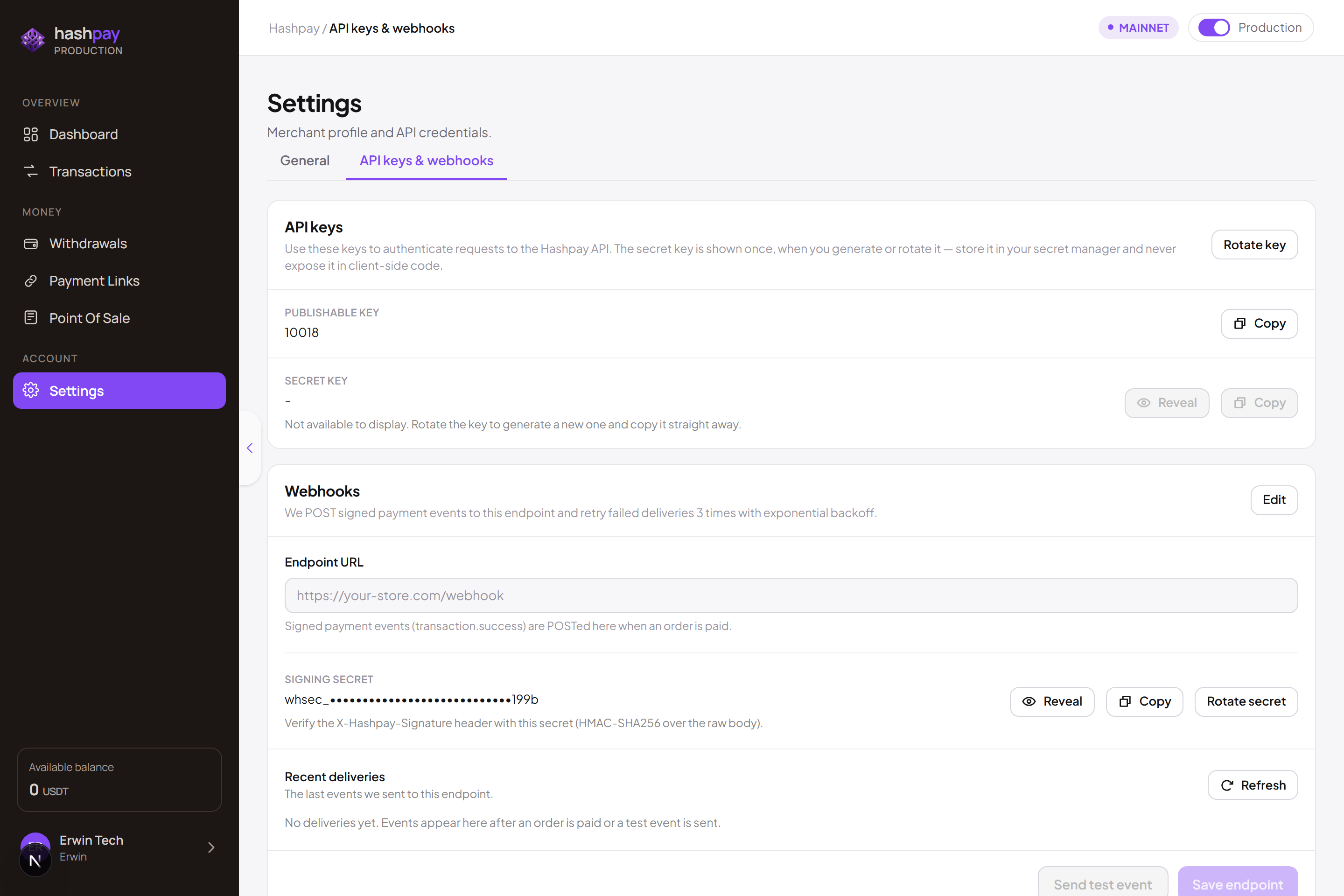
Located under /setting/merchant-setting in the API keys & webhooks tab, this screen provides developers and e-commerce operators with the necessary credentials to integrate Hashpay:
- Merchant ID (Public) — Safe public identifier used for frontend widgets and customer payment links.
- Secret API Key (Private) — Confidential authentication key used by your backend server or e-commerce plugin.
- Self-Service Key Rotation — If staff leaves or credentials are accidentally exposed, click Regenerate Key to revoke old keys and issue new ones instantly.
- Webhook Endpoint & Secret — Configure the URL where your server receives real-time payment success notifications, complete with cryptographic signature verification.
- Test Webhook — Trigger simulated test events to verify your server integration with a single click.
Merchant Setting: Fees & minimum order limits (Read-Only)
Located under /setting/merchant-setting in the Fees tab, this view provides transparent visibility into your negotiated commercial terms with Hashpay:
- Negotiated MDR Fee Table — Displays the active Merchant Discount Rate (percentage rate + flat fee) configured for each blockchain network (BNB Chain, Tron, Ethereum, Solana).
- Fee Allocation Policy — Indicates whether transaction fees are configured as Ditanggung Penjual (Borne by You/Seller) or Ditanggung Pembeli (Borne by Customer/Buyer).
- Minimum Order Amount (Min order) — The strictest minimum bill value (e.g. Rp 10.000) below which transactions cannot be initiated. This limit prevents dust transactions where blockchain gas fees would exceed the transaction value.
| Pricing Example (Rp 100.000 Item, 1.5% MDR) | Ditanggung Penjual (Borne by Seller) | Ditanggung Pembeli (Borne by Buyer) |
|---|---|---|
| Price Shown to Customer | Rp 100.000 | Rp 101.500 (Invoice + Fee) |
| Processing Fee (1.5%) | Rp 1.500 (Absorbed by merchant) | Rp 1.500 (Paid by buyer) |
| Net Amount Received by Merchant | Rp 98.500 | Rp 100.000 (100% Full Price) |
Payment Methods: Setup Payment & Live Preview
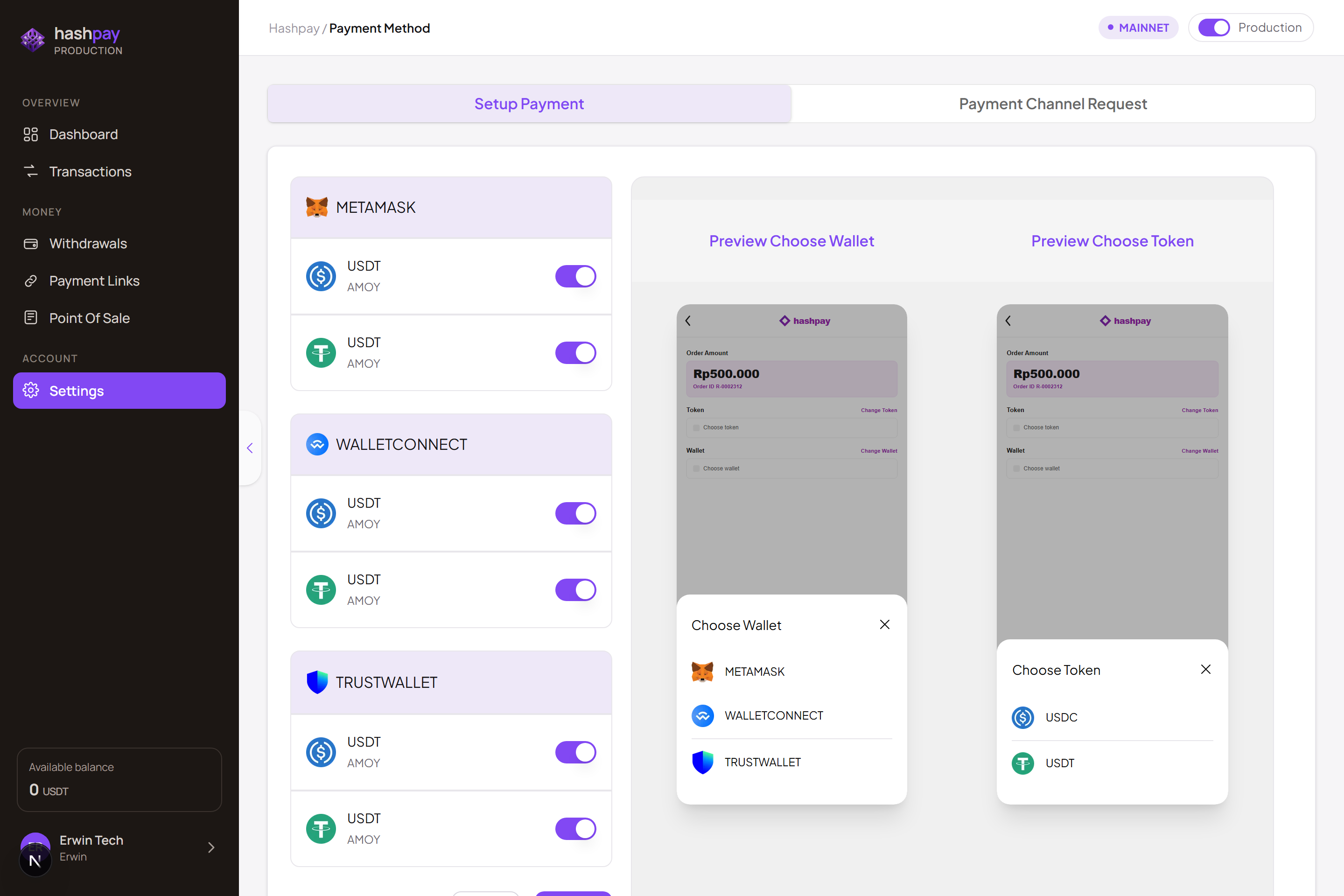
Located under /setting/payment-method in the Setup Payment tab, this interface allows merchants to customize customer-facing options:
- Supported Tokens — Enable or disable specific stablecoin assets (USDT, USDC).
- Supported Networks — Toggle blockchain networks your business accepts (e.g., enable BNB Chain and Tron for everyday low-gas retail, enable Ethereum for large wholesale invoices).
- Supported Wallets — Enable wallet options including MetaMask, Trust Wallet, WalletConnect, and Phantom.
- Live Checkout Preview — Review real-time previews of what your customers see before publishing changes.
Payment Methods: Payment Channel Request
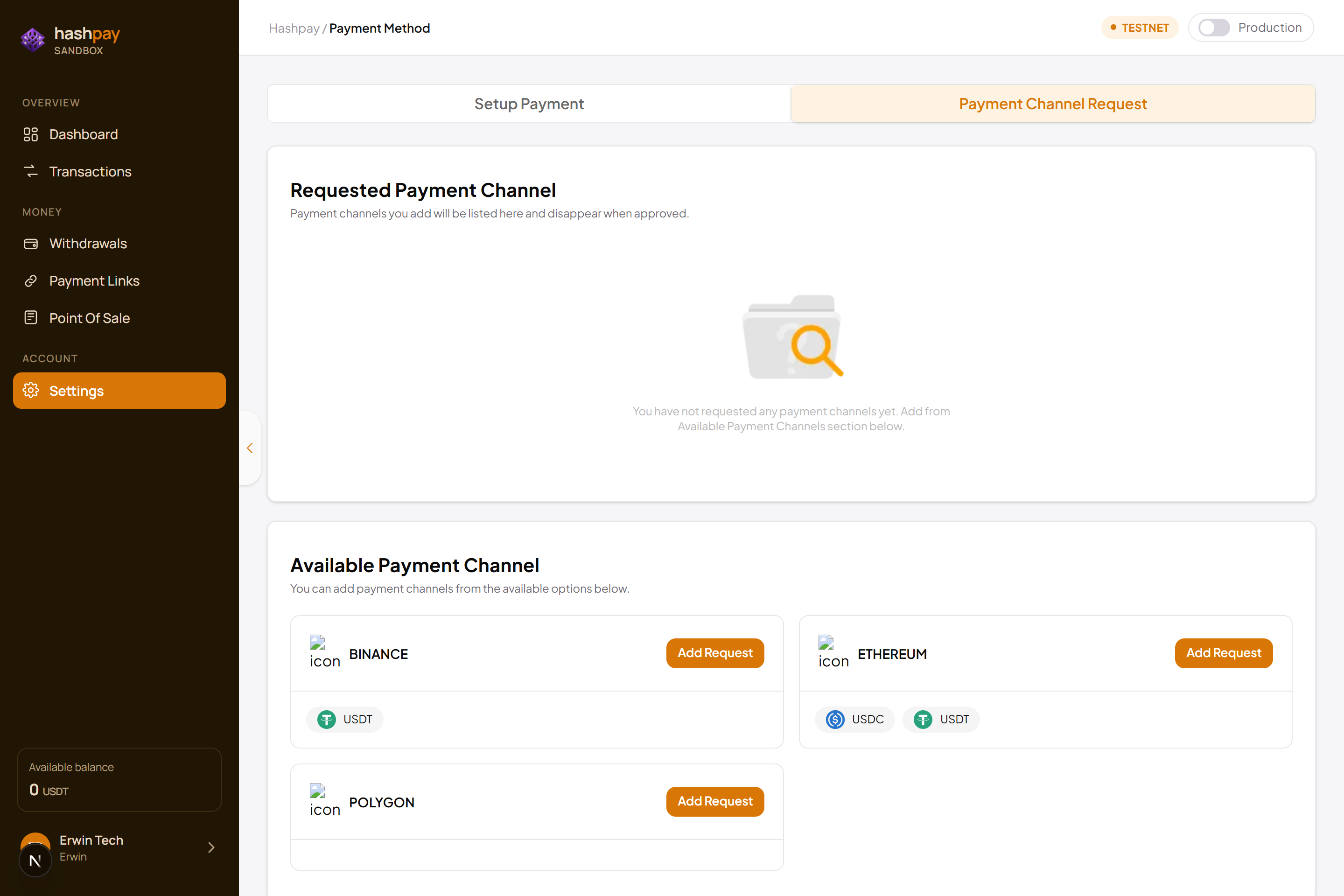
Located under /setting/payment-method in the Payment Channel Request tab, this formal submission workflow allows merchants to request activation of additional payment rails:
- Submit Channel Request — Fill in the requested new token, new blockchain network, or specialized local payment rail.
- State Commercial Reason — Provide anticipated transaction volumes or specific customer demographics requiring the channel.
- Hashpay Review & Activation — The Hashpay compliance and engineering team evaluates network liquidity and security, activating the channel directly into your store upon approval.