
Sign in to Dashboard
Your secure entry point to manage sales performance, monitor real-time crypto transactions, configure cashier POS devices, and disburse company funds.
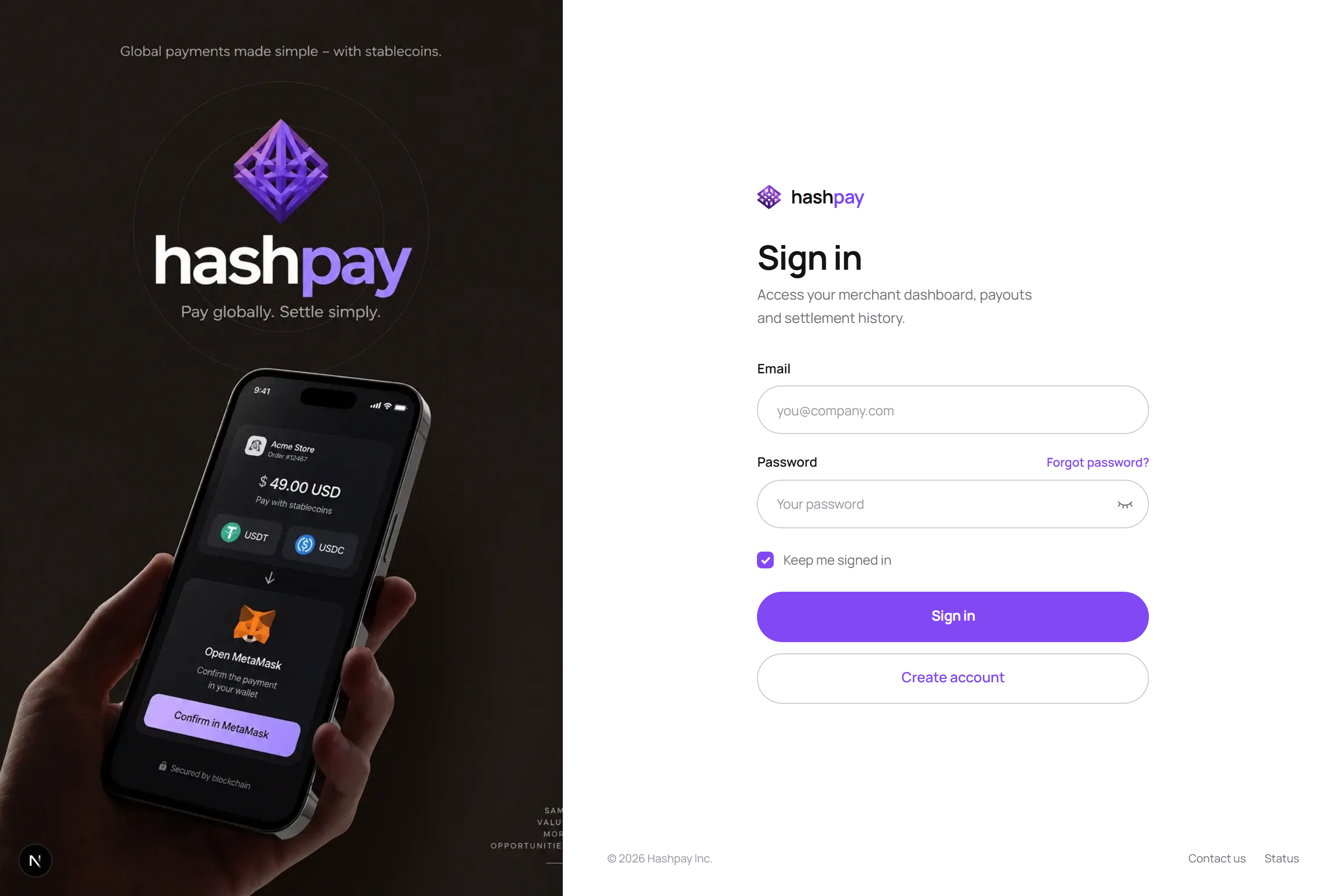
Understanding the sign-in fields
The Hashpay merchant portal uses bank-grade encrypted session management to protect your commercial operations. Here is a breakdown of each component on the login screen:
- Merchant Email — Enter the verified email address associated with your merchant account. This address receives daily settlement summaries, OTP security codes, and system notifications.
- Password — Enter your confidential account password. Click the eye icon toggle on the right side of the field to verify your input and prevent typos.
- Keep me signed in (Remember Me) — When checked, this preserves your active operational session on trusted private devices (such as your store office PC) for up to 30 days, avoiding repetitive logins during daily business hours. Never check this option on public or shared computers.
- Create account — If your business does not have an active merchant profile yet, click this link to access the self-service business onboarding form.
Step-by-step sign-in procedure
- Verify Official HTTPS URL — Ensure your browser shows the secure SSL lock icon and points to
https://dashboard.hashpay.id. - Enter Credentials — Input your registered corporate email and password accurately.
- Complete 2FA Verification (If Enabled) — If Two-Factor Authentication is active on your account (recommended for treasury security), open Google Authenticator or Authy on your mobile phone and enter the 6-digit code.
- Access Dashboard — Click Sign In. Upon successful validation, you are redirected immediately to your real-time Dashboard Overview.
Troubleshooting sign-in issues
- Forgotten Password — Click the Forgot password? link directly below the password input. Enter your registered email to receive an instant, single-use password recovery link valid for 15 minutes.
- Account Inactive or Unverified — If you recently registered, check your email inbox (and Spam/Junk folder) for the Hashpay activation link. Click it to activate your merchant entity before attempting login.
- Too Many Failed Attempts (Account Lockout) — If an incorrect password is entered 5 consecutive times, the system temporarily locks login attempts for 15 minutes to thwart brute-force password guessing attacks.
- Corporate VPN & Firewall Restrictions — If your office network blocks payment or Web3 domains, ask your network administrator to whitelist
*.hashpay.id.