
Verify Email & Password Recovery
Activate your account through the email verification link, and recover dashboard access securely whenever you forget your password.
Part 1: Verifying your merchant email
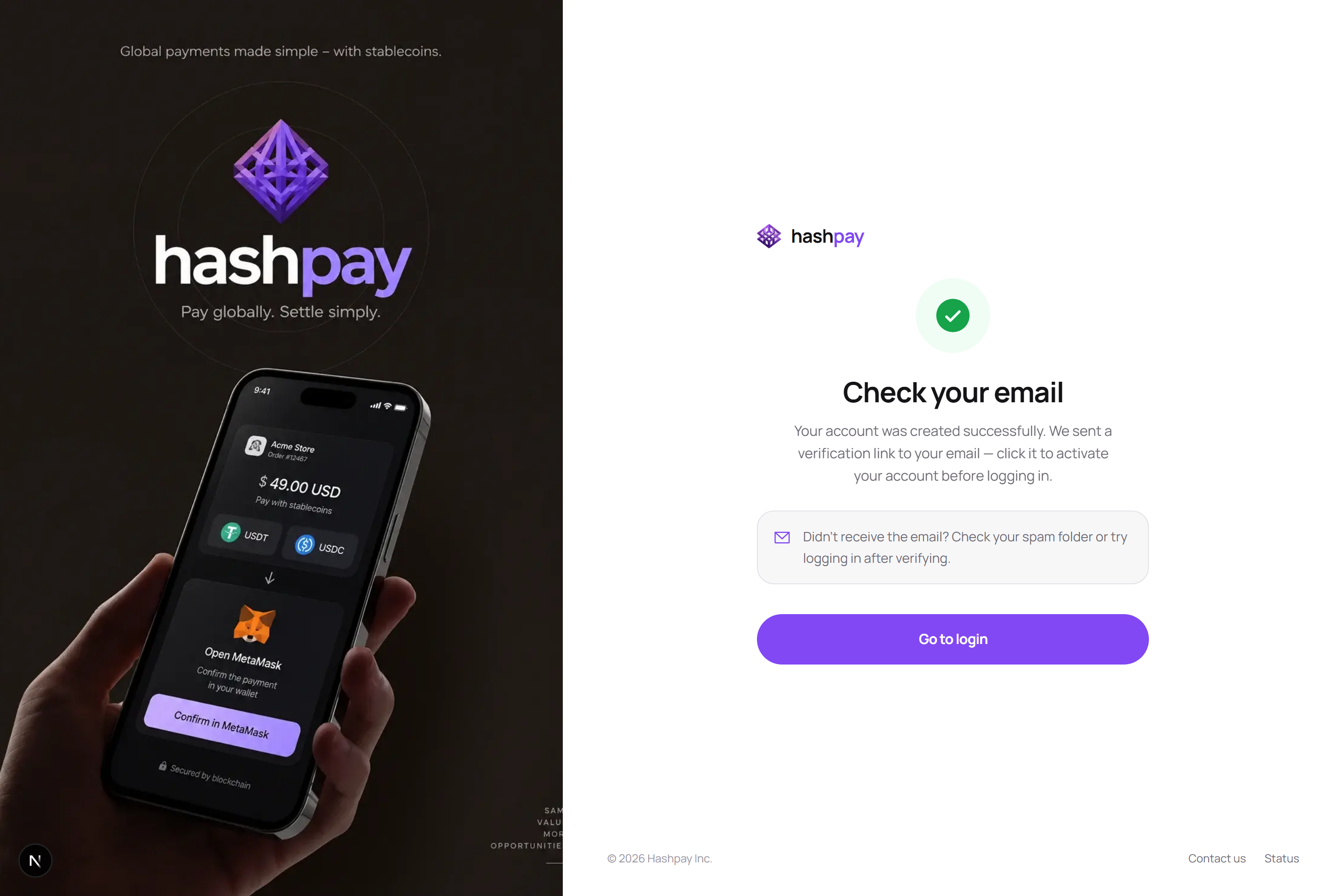
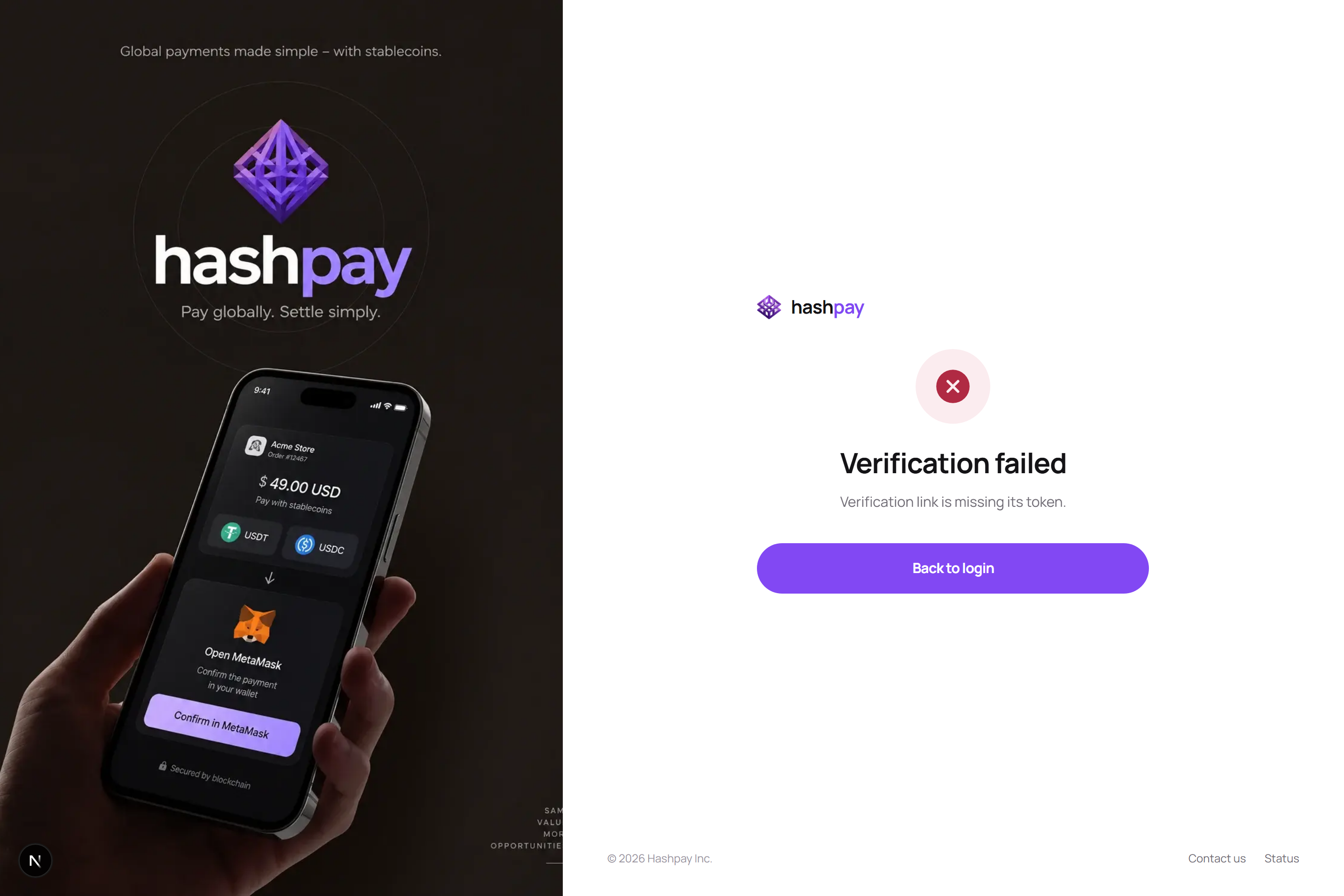
Email verification is a mandatory compliance step that ensures your business receives genuine settlement reports and security alerts. Follow these steps to activate your account:
- Check Your Inbox — Open your email client and look for an incoming message from
no-reply@hashpay.idwith the subject *'Verify your Hashpay Merchant Account'*. - Click Verification Link — Click the secure activation button inside the email. The link contains a cryptographically signed, one-time verification token.
- Automated Validation — Your browser will open the verification confirmation screen. The token is checked automatically without requiring manual code entry.
- Account Activated — When the green success badge appears, your account is fully activated. Click Go to login to access your dashboard.
Troubleshooting email delivery
- Spam & Junk Folders — Email providers occasionally misclassify automated transactional emails. Check your Spam, Junk, or Promotions tabs.
- Corporate Domain Filters — If using a company domain (e.g.,
@yourcompany.com), ensure your corporate IT firewall does not block incoming messages fromhashpay.id. - Resend Verification — If you do not receive the email after 5 minutes, visit the login page, enter your credentials, and click Resend verification link.
Part 2: Password recovery (Forgot Password)
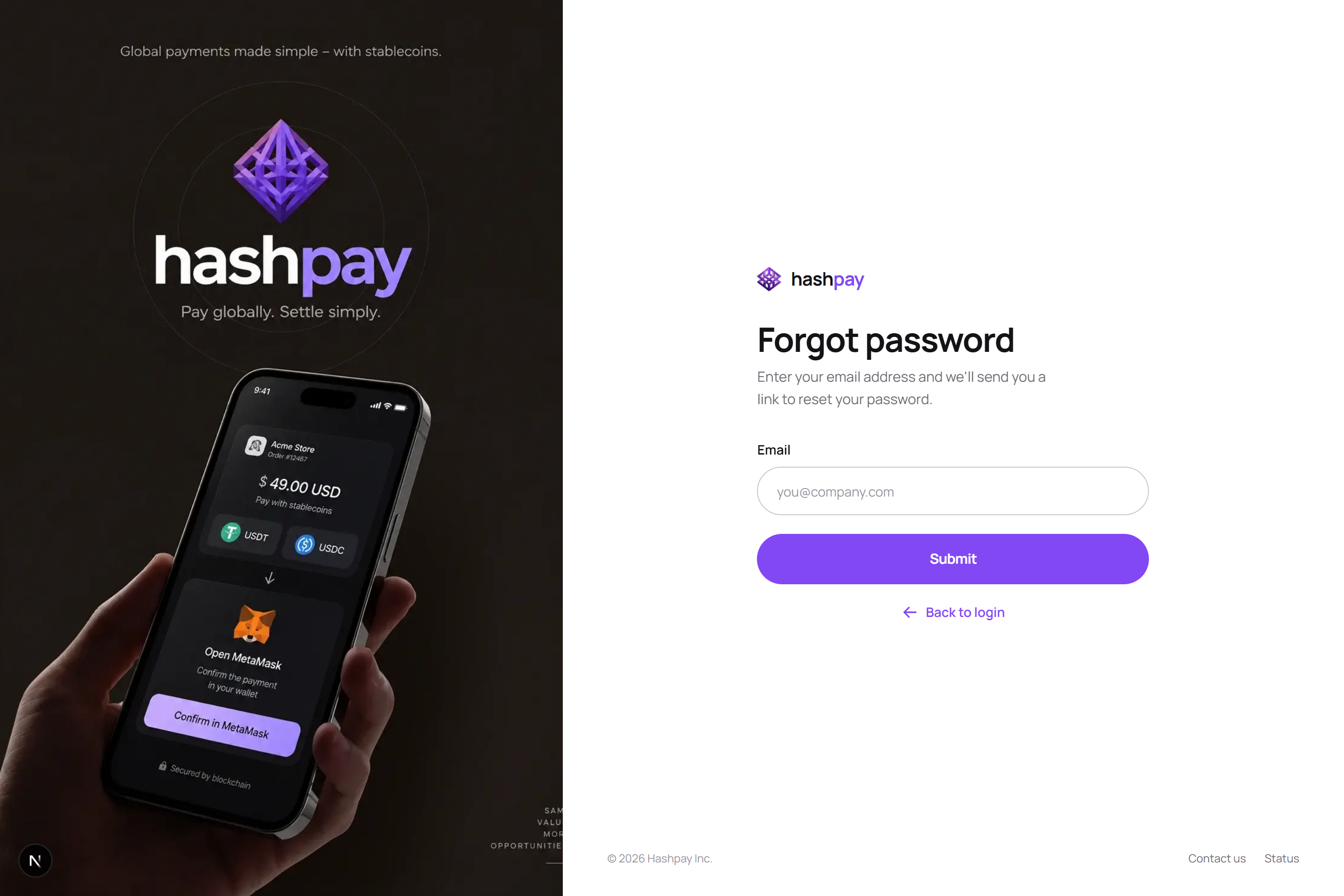
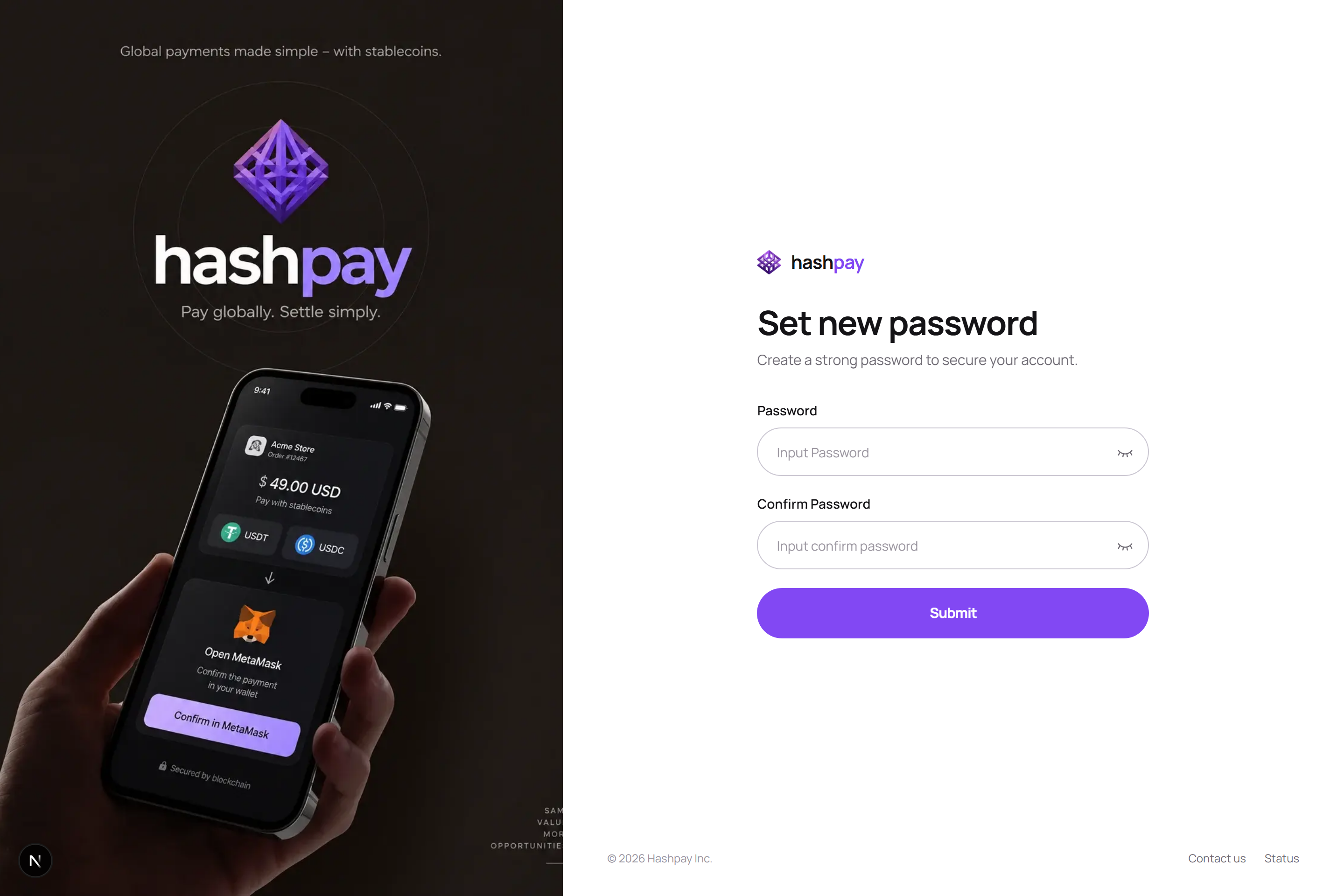
If you forget your merchant password or suspect account compromise, use the self-service recovery flow to regain access immediately:
- Request Reset — On the sign-in page, click Forgot password?.
- Enter Registered Email — Type the exact email address registered with Hashpay and click Send reset instructions.
- Open Password Reset Email — Open the password reset email and click the unique secure link (valid for 15 minutes).
- Set New Password — Enter your new password meeting all complexity rules (min. 8 characters, uppercase, lowercase, numbers, symbols), confirm it, and click Reset password.
- Session Revocation — For security, resetting your password automatically revokes all active browser sessions across all devices. Log in freshly with your new credentials.