
Payment Links (Online Invoicing)
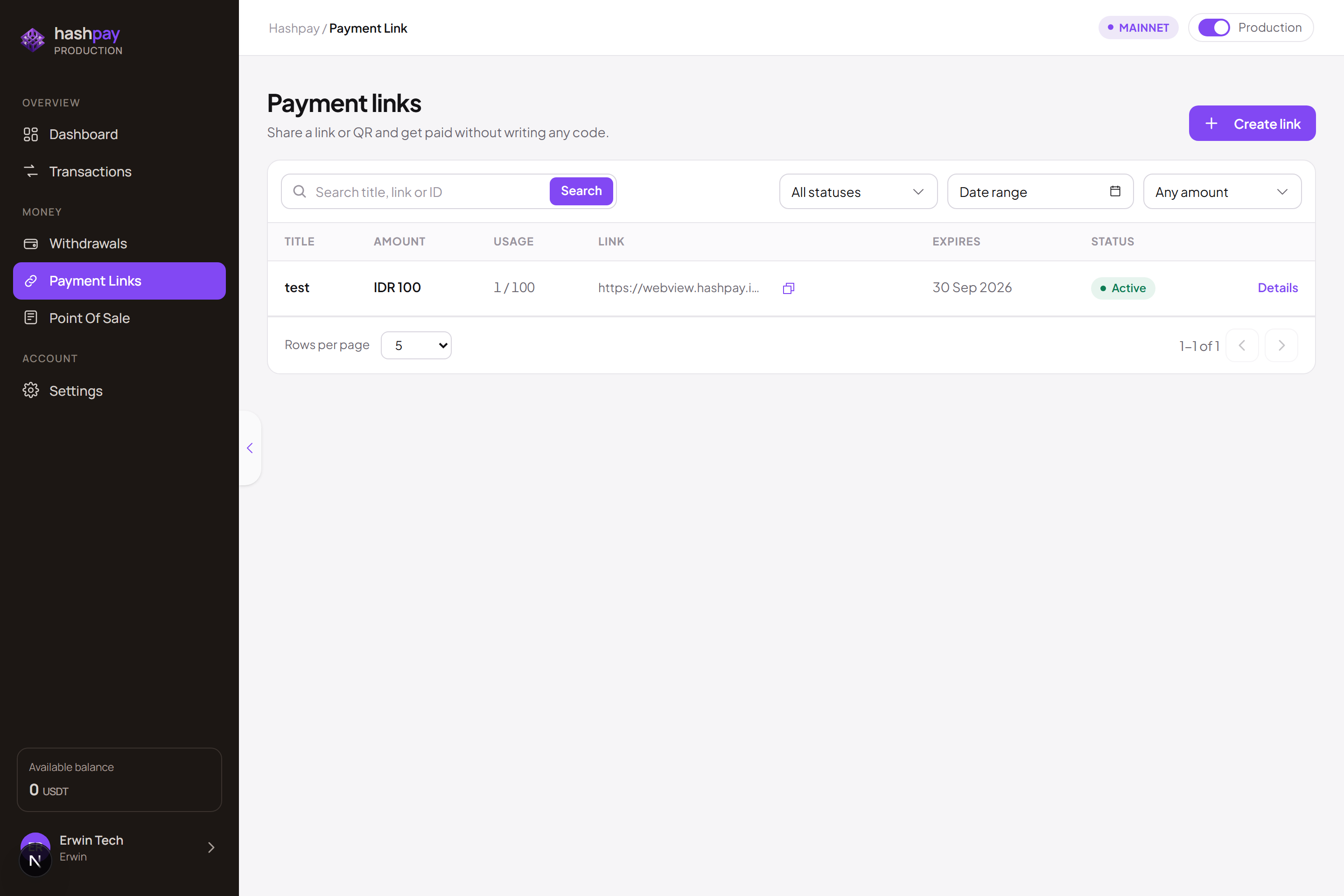
A Payment Link is a shareable checkout URL that lets you collect digital asset payments instantly without needing a full e-commerce website. Create custom bills, add multiple product items, and share links directly via WhatsApp, Email, or Social Media.
When to use Payment Links
Payment links are the fastest way to accept crypto payments without writing a single line of code. They are perfect for diverse commercial operations:
- Chat Commerce (WhatsApp & Social DMs) — Conclude customer negotiations directly in WhatsApp Business, Telegram, or Instagram DMs by sending a pre-calculated invoice link.
- Service Invoicing & Remote Consulting — Bill corporate clients, overseas clients, or consulting retainers with clear itemized line items in Indonesian Rupiah.
- Pre-orders & Limited Drops — Collect upfront deposits or full payments for custom-made goods, merchandise pre-orders, or ticket reservations.
- B2B Wholesale Invoices — Issue high-value commercial invoices settled safely in stablecoins with zero chargeback risks.
Step-by-step: Creating a Payment Link
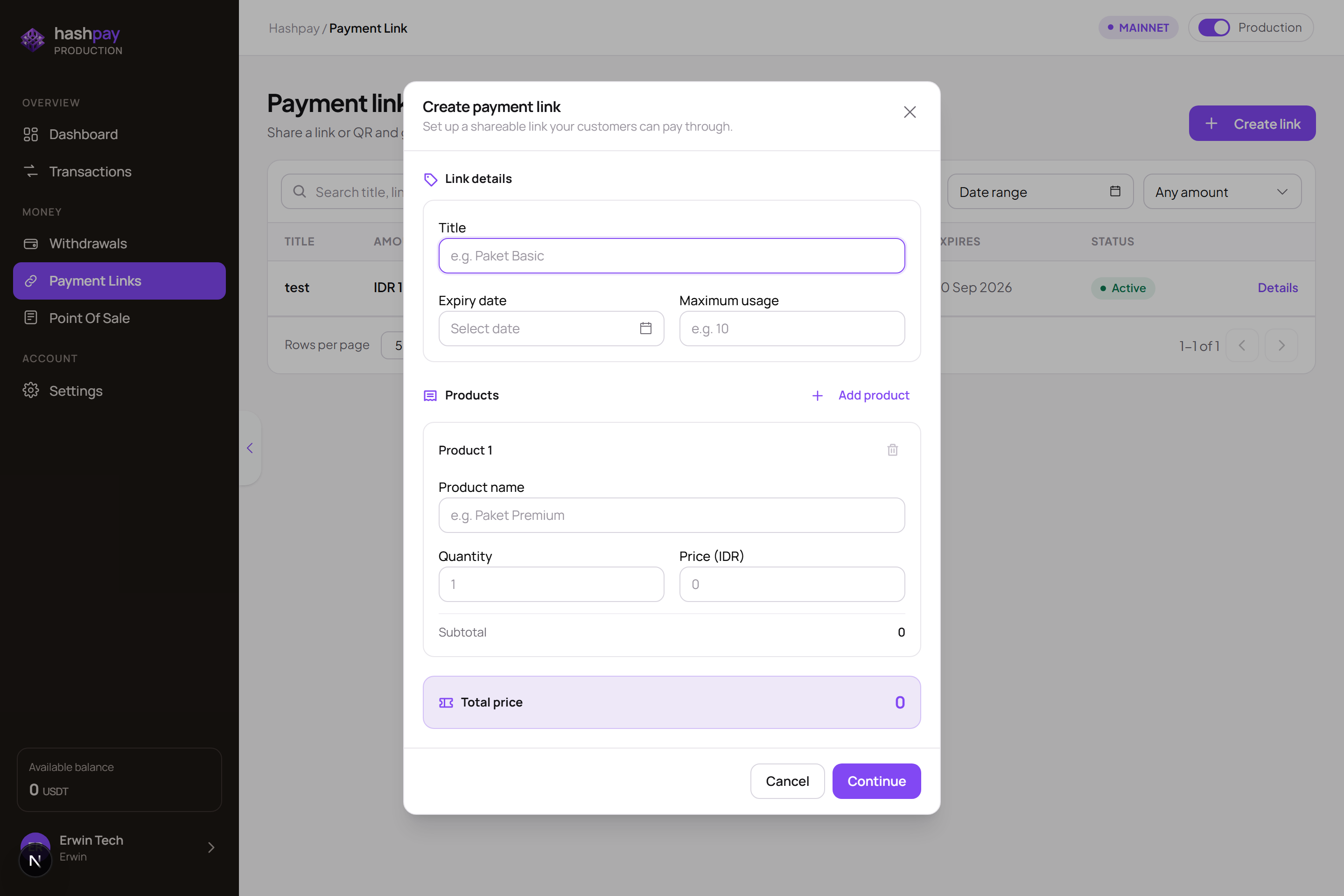
Follow these steps to generate a professional payment invoice from your dashboard:
- Navigate to Payment Links — Log in to your merchant dashboard and click Payment link in the sidebar navigation.
- Click '+ Create Payment Link' — Open the creation modal from the top-right button.
- Enter Title & Description — Provide a recognizable invoice title (e.g., *'Order #1042 - Custom Leather Jacket'*) and an optional description detailing the order for the buyer.
- Add Product Line Items (Multi-Item Support) — Enter the item name, quantity, and unit price in Indonesian Rupiah (IDR). Click + Add Item to attach multiple products or add delivery fees; the invoice subtotal and total calculate automatically. Ensure the total meets your account's minimum order threshold (e.g. Rp 10.000).
- Set Maximum Usage (Max Usage) — Choose *1 time* for single-customer personal invoices, or *Unlimited* if you are selling a fixed-price item or digital ticket to many customers via a single shared link.
- Set Expiration Window — Select link validity (e.g., 24 hours, 3 days, or 7 days). Once expired, the link automatically deactivates to prevent outdated crypto exchange rate calculations.
- Choose Settlement Destination — Keep default to settle funds into your main dashboard balance, or enable Direct Deposit to sweep incoming payments directly to an external supplier or partner wallet.
Sharing your link with customers
Once created, click the Copy Link button next to your invoice. You can distribute the link through any channel. Here is a recommended WhatsApp message template:
- WhatsApp / Telegram — Send a courteous message: *'Hello Kak! Thank you for ordering from [Store Name]. Here is your official secure payment link: https://pay.hashpay.io/link/xyz. You can pay using USDT/USDC in just a few taps. Let us know once completed!'*
- Email Invoices — Embed the clickable URL as a payment button inside your company's formal PDF invoice or quotation.
- Social Media Bios & Stories — Add multi-use links to your Instagram bio, TikTok profile, or promotional banners.
What your customer sees (The payment experience)
When your customer taps the payment link on their mobile phone or opens it in a desktop web browser:
- Branded Order Summary — A clean checkout page displays your store brand, the invoice number, itemized product list, and total amount in IDR.
- Token & Network Selection — The customer selects their preferred token (USDT or USDC) and payment network (BNB Chain, Tron, Solana, or Ethereum). The real-time crypto equivalent is locked for 15 minutes.
- Dynamic QR Code — On mobile, the customer can tap a wallet deep link or scan the QR code. On desktop, they scan the on-screen QR code using their smartphone wallet camera.
- Instant Payment Detection — As soon as the customer authorizes the transaction in their wallet, Hashpay detects the on-chain transfer within 2–5 seconds, turning the screen green with a success confirmation and digital receipt.
Tracking and managing payment link statuses
| Status | Meaning | Operational Action to Take |
|---|---|---|
| Active | The link is live and awaiting customer payment | No action needed; wait for the buyer to transfer within the validity period. |
| Paid | The customer has successfully paid and funds are confirmed on-chain | The invoice is settled. Your team can safely pack and ship the order. |
| Expired | The validity period elapsed before payment was received | The link is closed. If the customer still wants to purchase, generate a fresh link with updated market rates. |
Detailed link analytics & linked transactions
Clicking any row in your Payment Link table opens the modal in Details Mode. Here you can inspect comprehensive telemetry:
- Shareable URL & QR Code — Instant quick-copy and QR code display for rapid re-sharing to customers.
- Usage Analytics — Current usage count versus maximum allowed usage (e.g. 1/1 for single-use, or 42/Unlimited).
- Dedicated Linked Transactions List — A filtered real-time ledger showing all blockchain transactions completed specifically through this payment link, complete with customer payment timestamp, crypto token, and external TxHash block explorer links.